|
|

GLD2010 Network Version Upgrade Instructions
GENERAL INFORMATION
The midterm release of GLD2010 contains additional features that are
controlled by the licensing in the HASP Key. In order to update the
network installation of GLD2010, it is necessary to update the software and the
HASP Key. If your current software build is 7.1.34 or newer, only the software
will need to be updated. This information is directed towards IT
Managers/Network Administrators.
Note 1: Accessing a client machine (with GLDTM installed) via a remote desktop
session
MAY NOT WORK.
The HASP License Manager and DRM features of Windows will
prevent this type
of access. This
is NOT an issue with GLD. Network administrators
might try a third
party program like
VNC for configuration of remote clients.
LICENSE SERVER
You have a hardware key installed on a system somewhere within your network.
This system may or may not be used to operate the GLD program. This
system will be referred to as the "license server". The hardware key
must be installed on a "license server" anywhere within your network in
order for the GLD2010 software to be operational.
WORKSTATION CLIENT
You have one or more computer systems on your network with the GLD2010
software installed. The software is a special version of GLD that
utilizes a network licensing system. The computer that is loaded with
the network GLD software is referred to as the "workstation client".
PART 1: GLD 2010 Software Upgrade Instructions
Each "workstation client" that is to be used to run GLD2010 must have the software installed. Download the software by clicking on the below link and save it to your local system. You must first uninstall the previous installation of GLD on each machine that will be updated.
- Download and install the network edition of GLDTM on
all workstation client computers.
- GLD2010 network setup download
- Please note that the software will not function on any of the workstation clients unless the network HASP Key is programmed for builds 7.1.34 or later.
PART 2: GLD 2010 Hardware Key Upgrade Instructions*
*If your current GLD2010 version is prior to build 7.1.34, you will need to complete this section. Build versions 7.1.34 or newer, do not need to update their hardware keys.
On either a "client workstation" or on the "license server", you will gather data about the key to allow the information in the key to be updated for the features in the latest version of GLD2010.
- Attach the license key to the computer that you are working at.
- You will be running an executable file called GLDLicenseUpdater.exe. On a workstation client computer, it will be located in a folder under GLD that will have a path similar to this: C:\Program Files\Gaia Geothermal\GLD2010\Extras. Your location will vary based on the OS and the default installation location. You may also download it here.
- Execute the GLDLicenseUpdater.exe. It will present a screen
similar to the below image:
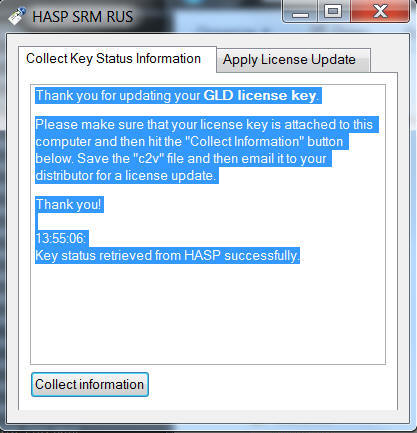
When you press Collect information, it will generate a file that you should save as: companyname.c2v and save this to a convenient location. Email this file to: sales@groundloopdesign.com and we will return a new configuration file, via email, that will be applied to your key using the same program. - When you receive the returned configuration file, use the "Apply License Update" tab by running the GLDLicenseUpdater.exe program. Select the file that we returned to you and click apply. This will program your key to the most recent version of GLD2010.
- Once you have completed this step, you may return the key to the physical location that you wish to have it installed for your network. After the key is re-inserted, the light will come on and the stations on your network that have been updated are now ready to run the updated version of GLD2010.
- To confirm that you are running the current version. please launch
GLD2010. The splash screen should provide a feedback message that
says you are "logged into the network". If you see something
significantly different, your installation may be incorrect.
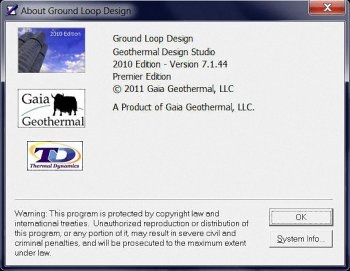
Select the help pull-down --> about. The version should be listed
as 7.1.44.
- Questions? Contact our Support Department