|
|

Topics:
- Installing GLD
- Upgrading GLD from a Previous Version
- Can I run multiple versions of GLD?
- Installation Errors
- Windows Vista and Windows 7 (32 bit and 64 bit) Installation Errors
- HASP (Hardware Key) Errors
- CFD Module Installations
- Activating LEAD+ Licensed
- Grayed out variables
- Grayed out results
- Iteration errors
- Vista issues
- EWT's and total capacity appear as negative values
- .GT2, .GT3, .GT4 Files
- Modeling period for horizontal systems
- Calculation Methods
The GLD Installation Process
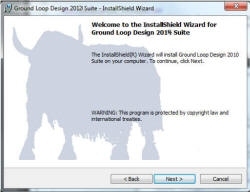
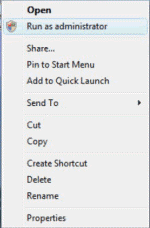
Step 1: Run the setup program. In some versions of Windows, you will need to run as administrator. Right click the executable program to display this choice.
Step 2: You will see the following screens:
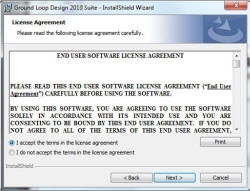
Read and accept the software end user license agreement. This is a
legal agreement.
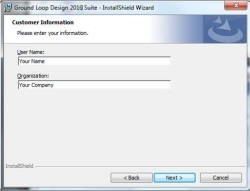
Enter the user name and company information that you would like GLD to use.
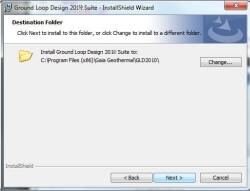
Accept the default program destination. You may change the location if
needed, but we recommend using the default for ease of future operations.
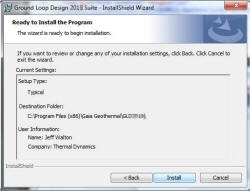
Check and install the program using the displayed information. You may
go back and correct any items that need to be changed.
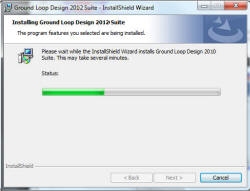
The setup process is underway. Several screens resembling this will
display your progress.
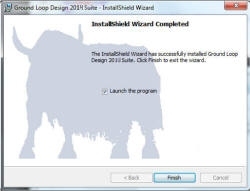
When the initial setup is completed, this screen will be presented.
Uncheck the Launch program box if you are installing the full (non-trial)
version.
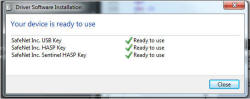
Plug in your USB hardware key. The device drivers for the key will
load automatically. This may take a few minutes as the internet is
checked for updates. If you expand the applet in the lower right tray
area, a progress box similar to below will be displayed. If you do not
wait for this process to complete, GLD will only launch in the trial mode.
The red light will illuminate on your hardware key and the program is now
ready to operate! A splash screen on GLD launch will present the
version information to show the successful installation of the software and
key drivers.

Upgrading from Previous Versions (i.e.: 3.x, 4.x, 5.x or 2009):
Q. I want to upgrade from a previous version to GLD2010. How do I do this and will I be able to continue to use my previous version?
A. Upgrading is an easy process from any previous version.
If you have customized heat pumps or project files, you should consider
copying the folders to another location to preserve the data.
While the process should not disturb files that were not included in the
previous installation process, it is always a good idea to preserve a
backup of important data.
Since GLD uses a key protection system, the key profile is programmed
specifically to your installation of the current product. It is
not possible to use both the previous version and the new version at the
same time since the key will be programmed to recognize only the current
version. A previous version may still be installed on your system
but it will revert to a trial mode of operation.
Updating to the current version is a straight forward process.
After you download and install the program, please follow these instructions
for updating your license key:
1) Attach your current license key to the computer USB Port.
2) Navigate to C:/Program Files/Gaia Geothermal/GLD2010/Extras
3) Run the FirmWareUpdate executable while the license key is attached to
the computer.
4) Look for an "Update Success" screen.
5) Next, run the GLDLicenseUpdater.exe that can be found in the same folder.
Collect the key information, save the yourcompanyname.c2v file and then
email it to us at:
sales@groundloopdesign.com.
6) We will respond promptly with the key activation code.
Installation errors with Windows Vista and Windows 7 (32 bit and 64 bit)
Q. I receive an error telling me I need to be the administrator to install the software?
A. Download and save the software from our website to your computer. Right-click on that file and select run as administrator. This step applies to all versions of Windows Vista and Windows 7 and is due to tightened security on the Microsoft OS. File should install after these steps have been taken.
Installation Errors
Q. On installation, I receive a message that says I have another version installed and setup cannot continue. You receive a message similar to the below dialog box:
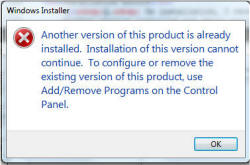
A. You have previously installed an earlier revision or trial version of the software. The installer package is a full installation, not an upgrade.
- In the control panel of Windows, remove the previous version.
IMPORTANT! Take care to save your proprietary work from any folders that
reside in the folder hierarchy under the Gaia Geothermal folder.
Copy to a safe location so that the uninstall process does not delete
your data.
- After uninstalling the previous version, remove your USB hardware key and execute the GLD setup program, remembering to run as administrator.
HASP (Hardware Key) Errors
Q. On installation, I encounter: "HASP SRM Error: Operating System Not Supported"
A. The USB hardware key uses drivers from the key manufacturer to communicate with your computer OS. In most cases, the correct drivers will be installed but when this error is encountered, you may manually install the file. For convenience, the HASP run time installer can be downloaded here. For the most current Aladdin drivers, you could alternately visit their site at http://www3.safenet-inc.com/support/hasp.aspx and download their latest driver set.
After loading the Aladdin driver, run the GLD Installation again and it should now
complete correctly.
If you are using a network version of GLD, please refer to our Network HASP Key information
CFD Module Installations
Q. The Piping/CFD Module Won't Open
A. This module uses a programming interface that is not used in the other GLD modules. While everything else seems to work properly, the piping module will not function unless the file below is properly installed and registered. This is an easy fix. In the GLD2010-->Extras Folder, manually run the PropertyWindow83_00_setup.exe file. After running, your system should now properly communicate with the GLD2010 CFD module. This applies to GLD 2010 Premier.
Activating LEAD+ Licensed
Q. How do I activate LEAD+?
A. When you downloaded GLD from our website two versions of LEAD+ came with it. To find the licensed version of LEAD+ simply navigate to c:\Program Files\Gaia Geothermal\GLD2009\LEAD and create a short cut to the file named LEADPlusSRM. Place that short cut on your desktop for convenient use. Double click the short cut you just created and the licensed edition of LEAD+ should open.
Grayed out variables
Q. Can I change variables that appear grayed out in GLD?
A. If values appear gray in your program it means that you either don't have these features available in your version or your program is running in demo mode. If you are running in demo mode and you haven't purchased the software, click here. If you have already purchased the software and you are running in demo mode, please check to ensure that your USB key is properly connected to your computer. You can verify that your key is connected by looking to see if your USB key is illuminated.
Grayed out results
Q. What do the grayed out numbers in the results mean?
A. The grayed out numbers in the results come from running the full dominant load against the less significant design. i.e. if there is a design that has a cooling dominant load, then the cooling design will be bolded in the results. The numbers that appear grayed out will satisfy the heating demand but the long term ground effects and ewts will be run as if you applied the full cooling load to the smaller, heat demand satisfying, field parameters.
Iteration errors
Q. What does it mean when a error box appears that contains "calculations fail!!" "Iterations=100"?
A. This error generally appears when a design will never stabilize due to the design of the field. The first variable that should be evaluated is the pipe/borehole spacing. If borings are located in to close of proximity to each other this error will develop readily. This warning is set up to let designers know that the particular design is risky and may not work.
Vista issues
Q. How do I get GLD to work with Vista?
A. GLD will work properly with Windows Vista by adjusting some simple settings. Find the location where you installed GLD and look for the file labeled GLDesign.exe. Right click on that file and select properties off of the pop-up menu that will appear. In properties select the "run as administrator" option. Once that option is selected GLD should run properly in Windows Vista.
EWT's and total capacity appear as negative values
Q. Why am I getting negative values for results in fields other than the ground temperature change?
A. This error is extremely rare and has only been observed in the pond loop module. If you experience this error in the vertical or horizontal module please let us know. To correct this problem simply reselect your heat pump and recalculate the results. This should correct any issues related to these findings
.GT2, .GT3, .GT4 Files
Q. Can GLD use these files or only .GT1 files from Trane Trace?
A. GLD Only uses GT1 files. To make your .GTx files work simply change the number to 1 at the end of the file.
Modeling period for horizontal systems
Q. How long should set the modeling period for during a horizontal design?
A. On shallow horizontal installations, less than 25 bgs, it is common to see the modeling period set to one year. This is done because shallow systems have a tendency to refresh themselves on a yearly basis. With shallow systems the energy you are moving to or from the building won't store the same as vertical systems will. With the lack of storage, increasing the modeling period will only lead to larger install sizes. However, systems that are installed deeper in the soil may need to be evaluated over a certain amount of time
Calculation Methods
Q. I get different answers when I use Design Day vs. Monthly vs. Hourly Calculations
A. GLD gives you several methods to simulate a project design.
Your results will be no better than the loads data that is provided to
size the loopfield. Depending on the data, GLD can use different
methods to arrive at a design.
Design Day: This design method uses peak load values and annual loads (AEFLH) values in conjunction with what is sometimes called the ASHRAE or Bluebook method. It is the fastest way to quickly size a loopfield although in some instances, the minimal loads data used by the model presents limitations. Design Day and annual energy loads may be imported from numerous third party products.
Monthly: This design method uses monthly peak and total loads for heating and cooling and provides a more nuanced and detailed analysis of how the system performs over time. GLD uses what are known as "g functions" and a variation on the borehole superposition model/LUND method of calculation to calculate loopfield performance over time. Since this method uses a much more detailed loads profile, it is able to calculate much more detailed results. Throughout much of the world, this model is the standard. Due to the greater detail in the loads profile and the use of "g functions", results calculated from this model can vary from those of the Design Day method. In some instances (but certainly not all)
significant loopfield reductions can be achieved using this model compared to the Design Day model. Imported loads from advanced building energy simulation tools such as the IES
Hourly: This design method uses an hour by hour data set from a single year. Sometimes referred to as the 8760 method, this calculation intensive method requires significant computational resources and a single simulation for a large system may take hours. GLD at present time limits the simulation length to three years for this reason. A modified version of the Monthly method is used to predict hourly performance of the loopfield. 8760 hourly data is gradually becoming recognized as the industry standard simulation technique. GLD can accept hourly inputs from the IES